With the new Customize Minutes in Real-Time feature, you can edit, style, and collaborate on meeting minutes directly during your sessions. This makes note-taking faster, clearer, and more engaging for everyone.
❓ What is this feature?
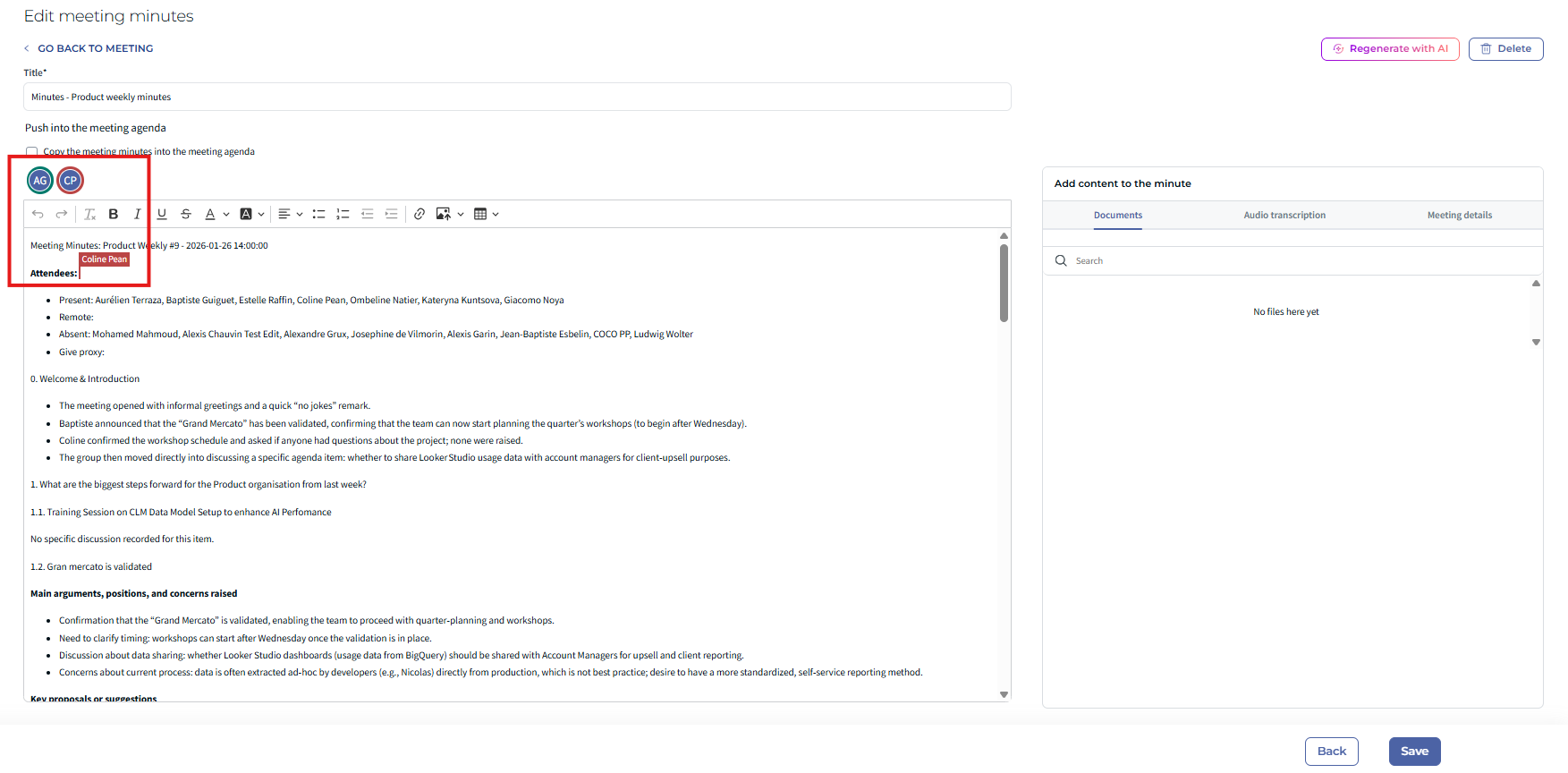
This feature allows admins and participants to personalize their meeting minutes while collaborating in real-time. You can highlight key points, add colors, insert images, and even include tables for structured information. All changes are visible instantly to other editors, ensuring smooth teamwork.
- ✅ Style your notes with colors, highlights, and custom formatting.
- ✅ Add tables, images, and pasted content from Office/Google.
- ✅ Collaborate live — edits appear instantly to all editors.
- ✅ Undo/redo actions and view previous versions (when enabled).
- ✅ Push customizations across the entire meeting (agenda + minutes).
✍ How to use it
Step 1: Open your meeting minutes
Go to your meeting in the Board Portal and open the Minutes tab. You will see the new collaborative editor interface.
Step 2: Start customizing
- Select text and choose highlight or color options from the toolbar.
- Click the table or image icon to insert structured content.
- Paste content directly from Word or Google Docs — formatting is preserved ✨.
Step 3: Collaborate in real-time
Multiple admins can edit simultaneously. Changes are synced instantly, so you always work on the latest version without overlaps.
Step 4: Apply to the whole meeting
Use the customization options to push styles and edits across agenda sections and all meeting content for a consistent look.
⭐ Benefits
- Efficiency: 80% of your minutes can be ready to share by the end of the meeting.
- Clarity: Highlights, tables, and visuals make your notes easy to read.
- Engagement: Real-time collaboration keeps participants active and aligned.
- Control: Undo/redo and version history help you stay in charge.
⚠️ Limitations
- Track changes and version history are available only if enabled by your admin.
- Some advanced formatting may differ when exporting minutes to Word/PDF.
- Requires an updated browser for the best experience (Chrome, Edge, Firefox, Safari).
✌ Tips & Best Practices
- Use color highlights sparingly for maximum impact.
- Keep tables simple for readability.
- Review minutes together at the end of the meeting to finalize instantly.
Was this article helpful?
That’s Great!
Thank you for your feedback
Sorry! We couldn't be helpful
Thank you for your feedback
Feedback sent
We appreciate your effort and will try to fix the article