Lini is the AI assistant built into DiliTrust. In the Contract Management (CLM) module, Lini helps you answer legal questions, analyze and compare contracts, review contracts against your company playbooks, build reports on your contract portfolio and fill in contract data automatically.
This article gives an overview of everything Lini and AI can do in CLM, explains how to use Ask Lini in full page, and links to the detailed article for each feature. For concrete use cases and ready-to-use prompts by role, see CLM – Ask Lini: Use Cases & Prompts by Role.
⚡ Lini in CLM at a glance
- Ask Lini in full page: ask general legal questions, chat about one or several contracts, compare documents, search the web for verified references, and export or copy answers.
- Ask Lini in Word: ask questions about a contract, review, summarize or rewrite clauses directly in Microsoft Word.
- Risk Detector: review a contract against your company playbooks, see risky or missing clauses and suggested edits, and check the compliance percentage in CLM.
- Smart Reports and AI dashboards: ask a question about your contract portfolio, get a table of results and turn the results into charts with Lini.
- Monthly AI Success report: see each month how many AI actions were completed and how many hours AI helped your team save.
- AI in everyday contract tasks: AI is involved in tasks such as AI extraction for the summary sheet, labelling clauses, validating the contract type and identifying impacting clauses.
☝ Using Ask Lini in full page
Lini is your legal assistant built directly into CLM. You do not need a document to start: you can simply open Lini and ask a question.
How to Access Lini
Step 1 – Open from the Side Panel
- Go to the CLM side navigation panel
- Click on Lini
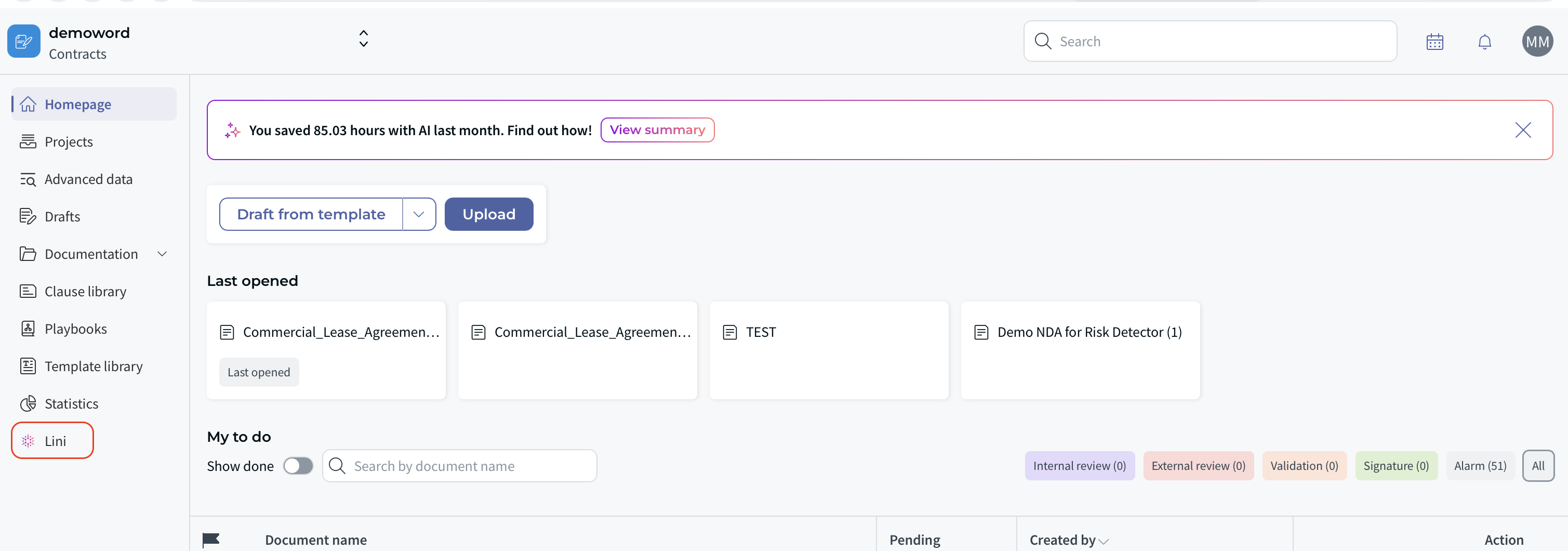
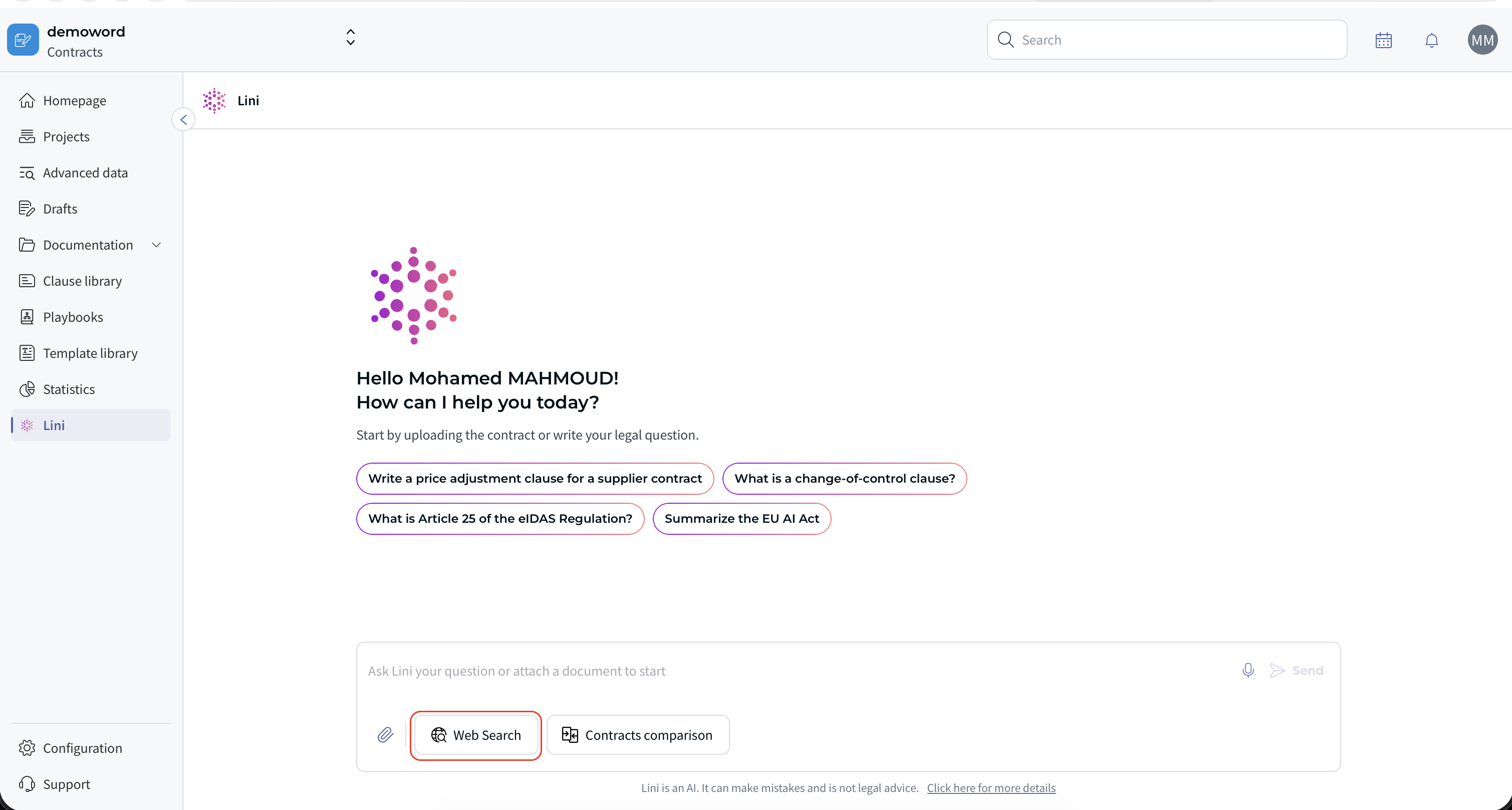
You will land on the Start screen with:
- Welcome message
- Suggested prompts
- Input field to type your question
From here, you can start immediately ⏩
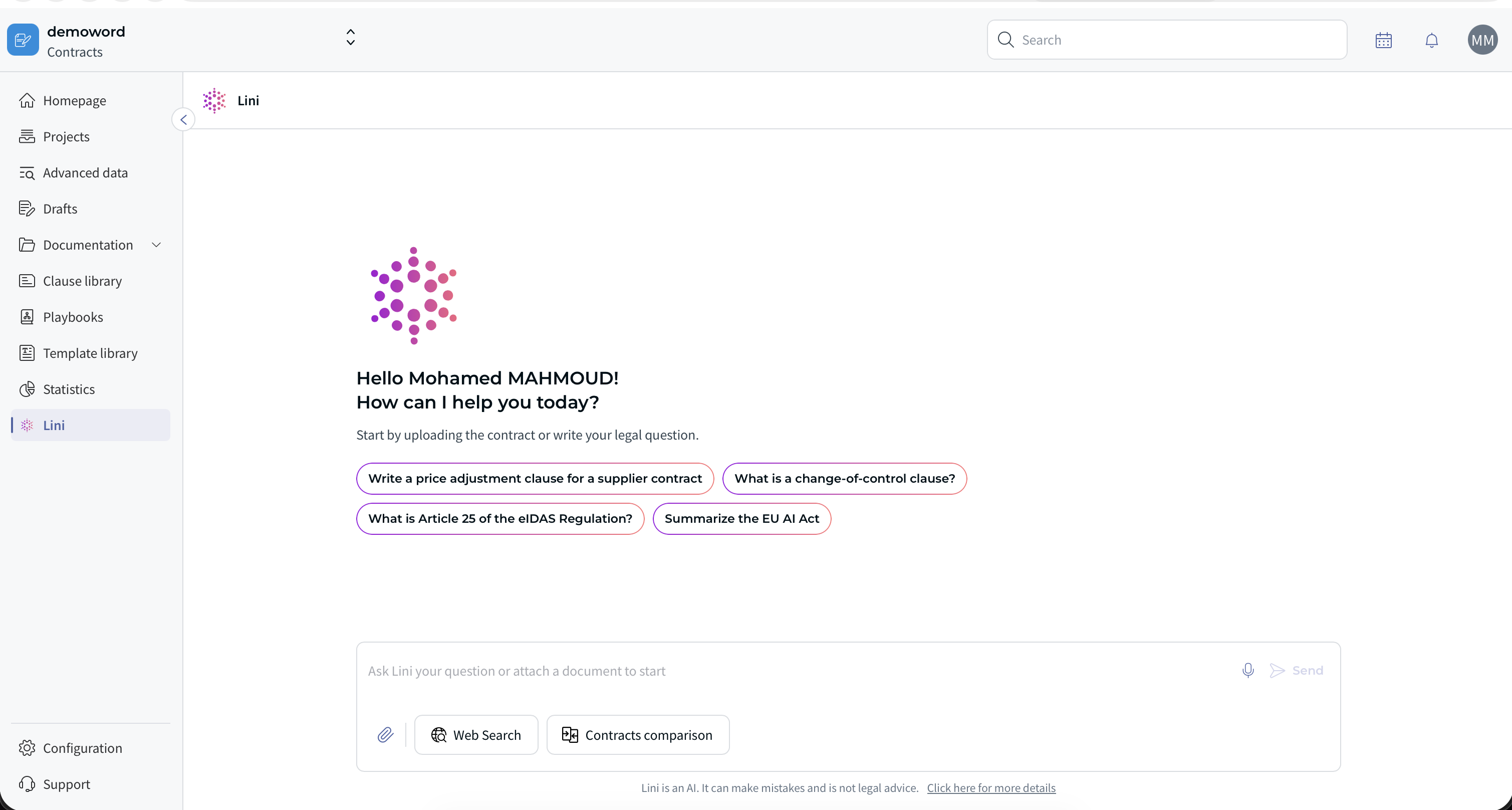
How to Start a Conversation
You have multiple ways to begin:
- Click one of the suggested prompts
- Type your own legal question
- Attach one or more documents before asking
For example questions and prompts by role, see CLM – Ask Lini: Use Cases & Prompts by Role.
Attaching Documents to the Chat
How to Attach a Document
- Click the paperclip icon
- Search for the document name
- Select the document from the list
- Click Send to confirm
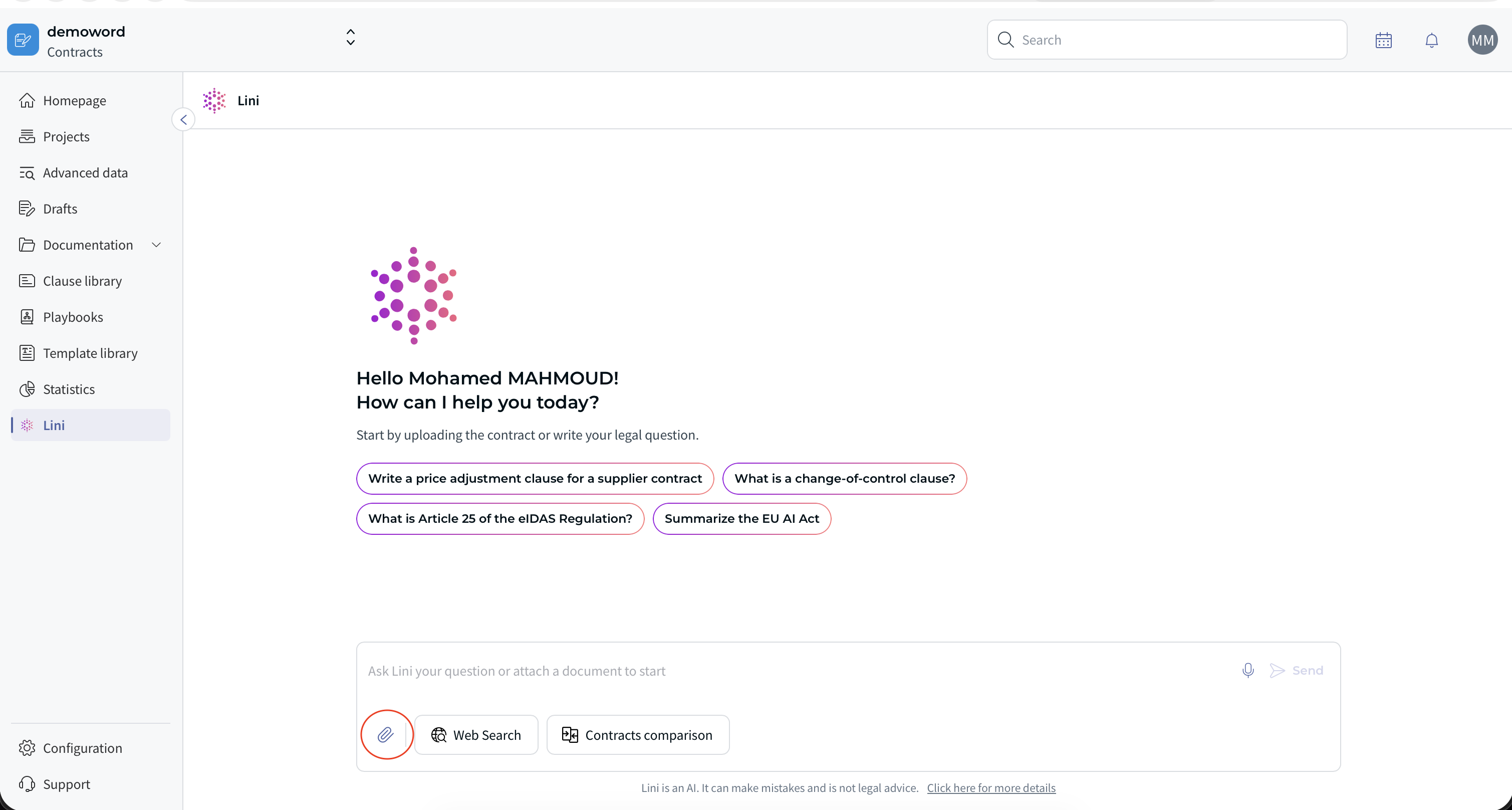
The selected document appears in a small box above the input field.
You can remove a document anytime by clicking [X] ❌
Important Notes
- You can attach documents at any moment during the conversation
- You can attach up to 5 documents per conversation
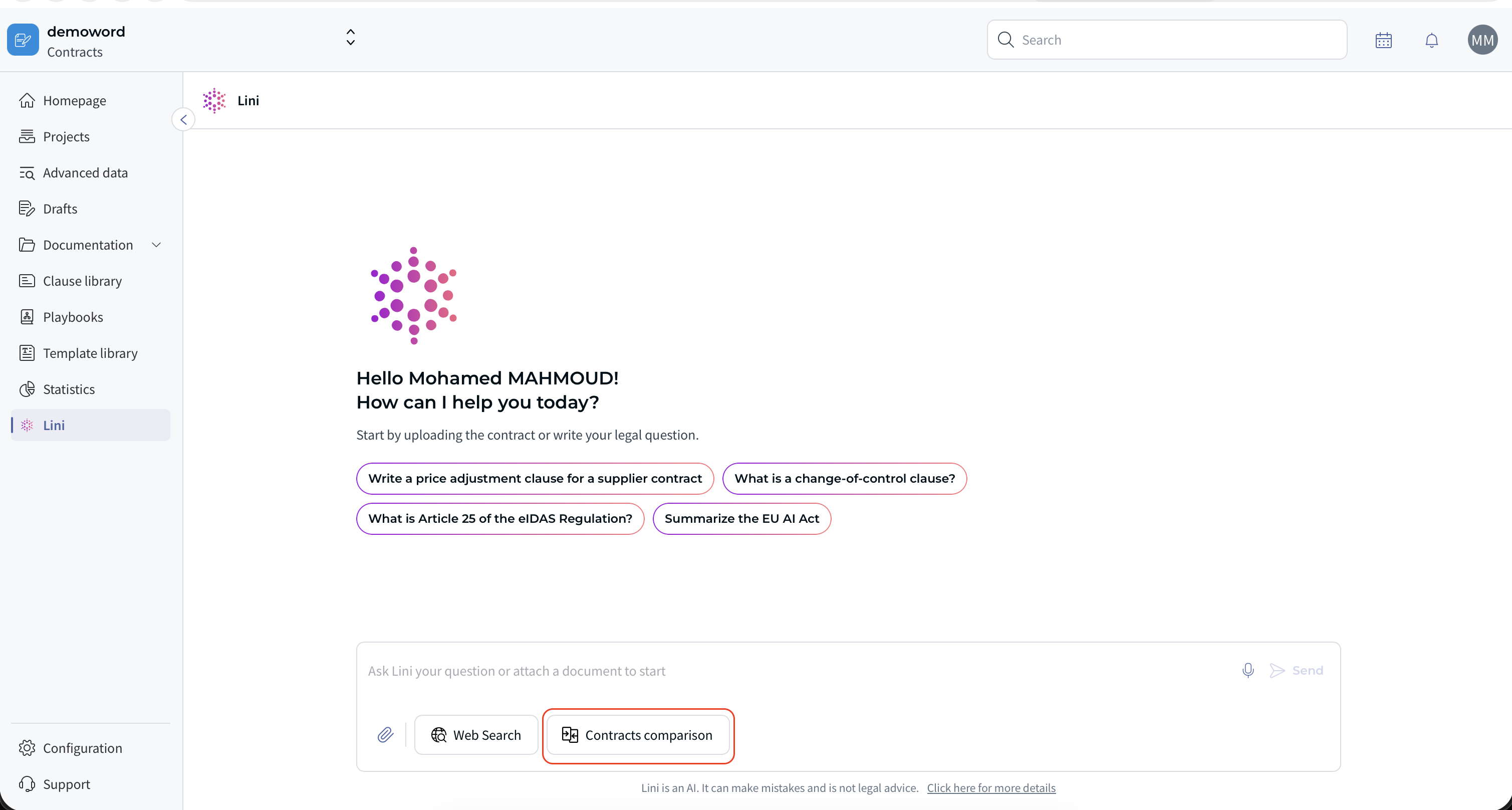
Comparing Two Contracts
When you attach 2 documents, the AI proposes:
“Compare these documents”
What Happens Next?
- The AI generates a structured comparison
- Results are organized by topics (e.g., Liability, Termination, Confidentiality)
- Each contract is analyzed under each topic
Viewing the Source
Under each comparison result, click [Show source].
This opens the original contract in a new tab with the relevant section highlighted ☝
✅ This ensures transparency and avoids guesswork.
Using Web Search
You can enhance answers with live web references.
How to Activate Web Search
- Click the Web Search toggle at the bottom of the input
What the Result Looks Like
- Top section: list of referenced websites (with icons and numbering)
- Text body: answers with numbered references (1, 2, 3…)
- Each reference includes a [See source] option
⚖️ This helps reduce hallucinations and provides verifiable legal information.
To deactivate Web Search, click the [X] in the Web Search container.
Message Actions
Message actions are available on AI responses (hover over a message).
- Export – Download answer as .docx
- Copy – Copy text to clipboard
- Regenerate – Get a new version of the answer
Usage tip ✨: If the answer is close but not perfect, try Regenerate before starting over.
Searching Within Lini
You can search inside your conversation history.
- Click the Search icon in the chat header
- Type your keyword
- Navigate results using arrows ⏫ ⏬
Matches are highlighted for easy scanning.
Restarting or Deleting a Chat
Restart the Chat
- Click Restart in the chat header
You return to the Start screen.
Restart clears the conversation immediately, without asking for confirmation. Previously attached documents are not kept.
Delete the Chat
- Click the three dots in the chat header
- Select Delete chat
- Confirm
After deletion:
- Chat history is permanently removed
- You return to the Start screen
Stop Generating an Answer
While the AI is generating a response, click Stop in the input area.
The message stops immediately ⛔
You can continue the conversation from that point.
✍ Ask Lini in Microsoft Word
Ask Lini is available in Microsoft Word through the DiliTrust add-in. Open a contract stored in your CLM workspace, click the DiliTrust tab, then select Ask Lini to open the side panel. Four actions are available:
- Ask: ask any question about your contract.
- Review: have Lini check a clause for risks or compliance.
- Summarize: get a clear, concise summary of the selected text.
- Rewrite: improve or rephrase a section for clarity and consistency.
For step-by-step instructions, see CLM - Ask Lini in Word.
⚖️ Risk Detector
Risk Detector is a contract review assistant that applies your legal playbooks to documents such as NDAs and MSAs. You define the rules once in a playbook for each contract type. Risk Detector then recognizes the document type, checks each rule, takes you to the relevant section and suggests edits with track changes in Word. You can accept, modify or reject each suggestion.
In CLM, a read-only view shows the compliance percentage of a reviewed contract, the flagged clauses with explanations, and which clauses your team accepted or dismissed. Editing actions are only available in the Word add-in.
For details, see CLM - Risk Detector: AI Contract Review.
⭐ Smart Reports and AI dashboards
Smart Reports let you ask a question about your contract repository from the Reports page of the CLM module. Lini generates a table of results in the background, and you can follow partial results as they appear. Smart Reports are shared with the users of your organization by default.
On a report results screen, you can also ask Lini to build analytics of the results. Lini answers with interactive charts that help you see the big picture.
For details, see CLM - Smart Reports.
⌛ Monthly AI Success report
Each month, DiliTrust calculates how many AI actions were completed in CLM and how many working hours they saved, for example attributes extracted in the summary sheet or clauses reviewed. You see a notification on the home page and can open the details in Analytics, under AI Performance. Administrators may also receive a monthly email.
For details, see CLM - Monthly AI Success Report.
✨ AI in everyday contract tasks
Some AI features are part of everyday CLM tasks. Their articles stay in the CLM category. For each one, the description says where AI is used:
Summary sheet (AI extraction)
- How to complete the summary sheet? – AI extraction: AI extracts key contract information into the summary sheet and highlights it in orange. You confirm, edit or complete it.
- How to add complementary information to my summary sheet? – in the summary sheet, when you click information captured by AI (in orange), AI suggests the matching attribute type.
- How do I label the clauses in my contracts? – in the contract, AI suggests clauses that you validate or resize. You label the clauses it did not detect.
Contract type and status
- How to validate / modify the type of my contracts? – when a contract is imported, AI suggests its type. You validate or change it in the summary sheet.
- What are the contract statuses? How to change them? – the contract status is calculated from the dates in the summary sheet, including dates suggested by AI that are not yet validated.
Clause library
- How do I identify impacting clauses in my contracts? – in the clause library, your contract clauses are automatically compared with your reference clauses to flag the ones that differ.
❗ Limitations and best practices
- Very large documents may take longer to process.
- Web Search depends on publicly available sources.
- AI answers should always be reviewed by a legal professional. AI assistance is not a substitute for legal advice.
- For best results, ask clear, focused questions and say what you want: a summary, a comparison, risks or clauses.
- Risk Detector results in CLM are read-only: to apply or dismiss suggestions, use the Word add-in.
- The Monthly AI Success report is generated monthly, not in real time, and only covers AI actions in the CLM platform.
❓ FAQ
Can I chat without attaching documents?
Yes. You can use AI Chat for general legal research anytime.
Is chat history stored?
Yes, until you manually delete the chat.
Can I attach documents during an ongoing conversation?
Yes. You can add documents at any time.
Does Web Search replace document analysis?
No. Web Search complements contract-based answers with external legal references.
⭐ Related articles
Was this article helpful?
That’s Great!
Thank you for your feedback
Sorry! We couldn't be helpful
Thank you for your feedback
Feedback sent
We appreciate your effort and will try to fix the article