Lini is the AI assistant built into DiliTrust. In the Board Portal, you ask it questions in everyday language, like in a chat. It finds information, summarizes it, creates files and prepares changes for you.
Lini never changes anything without your confirmation.
Want ready-to-use questions for your role? See BP – Ask Lini: Use Cases & Prompts by Role.
⭐ What Lini can do for you
- Find information: meetings, documents, minutes, votes, resolutions and tasks. Example: “Find all board decisions on dividends since 2024.”
- Summarize and analyze: a long document, a meeting, or a topic over several meetings. Example: “Summarize the last three board meetings.”
- Prepare meetings: create a meeting and its agenda from an email. Example: “Create the board meeting of [date] from this email.”
- Draft minutes and follow up: draft the minutes from the transcript, then turn the actions into tasks. Example: “Create tasks from the actions in these minutes.”
- Track activity: votes, questionnaires, overdue tasks, attendance. Example: “Who has not voted yet?”
- Create files: Word, PDF, Excel and PowerPoint. Example: “Create a Word briefing for the next board meeting.”
- Legal research: laws, case law and legal commentary in more than 230 jurisdictions, with verified citations. Example: “Under French law, what quorum applies to a board meeting held by videoconference?”
☝ Get started
Before you start
- You need an active DiliTrust account with access to Board Portal.
- Lini must be enabled for your organization. If you are not sure, ask your administrator.
- Use a recent version of Chrome, Edge, Firefox or Safari.
Open Lini
- Log in and go to Board Portal.
- Click the Lini icon, in the bottom-right corner or in the navigation bar. The Lini panel opens.
- Type your question and press Enter.
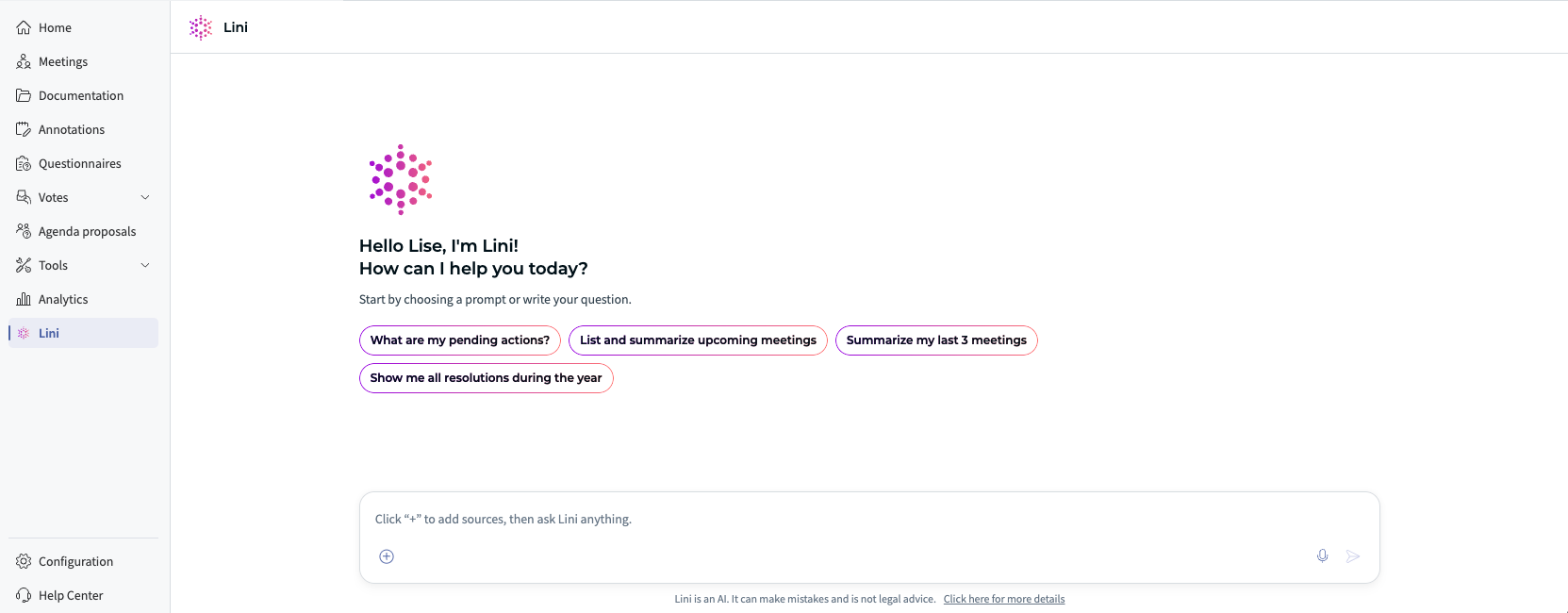
Lini remembers your previous conversations. You can come back later and continue where you left off. When you open Lini, guided suggestions also help you prepare a meeting.
✅ Good to know before you use it
- You see only what you are allowed to see. Lini uses your own access rights. It never gives you more access.
- You confirm every change. Lini lists the changes it prepared. Nothing happens until you confirm.
- You can check the sources. Answers link to the documents and records they come from.
- Lini helps, it does not advise. It does not replace a qualified lawyer.
- Lini answers in your language. Ask in French, English, Spanish or another language.
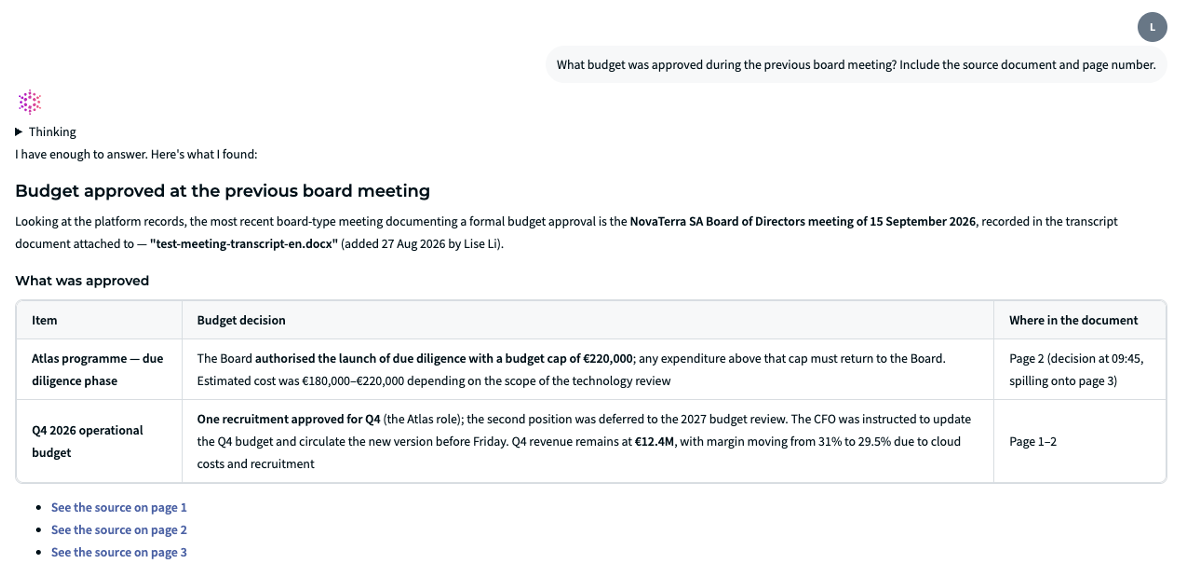
✍ How to ask a good question
- Name the meeting, document or topic. Example: “the October 2026 audit committee”.
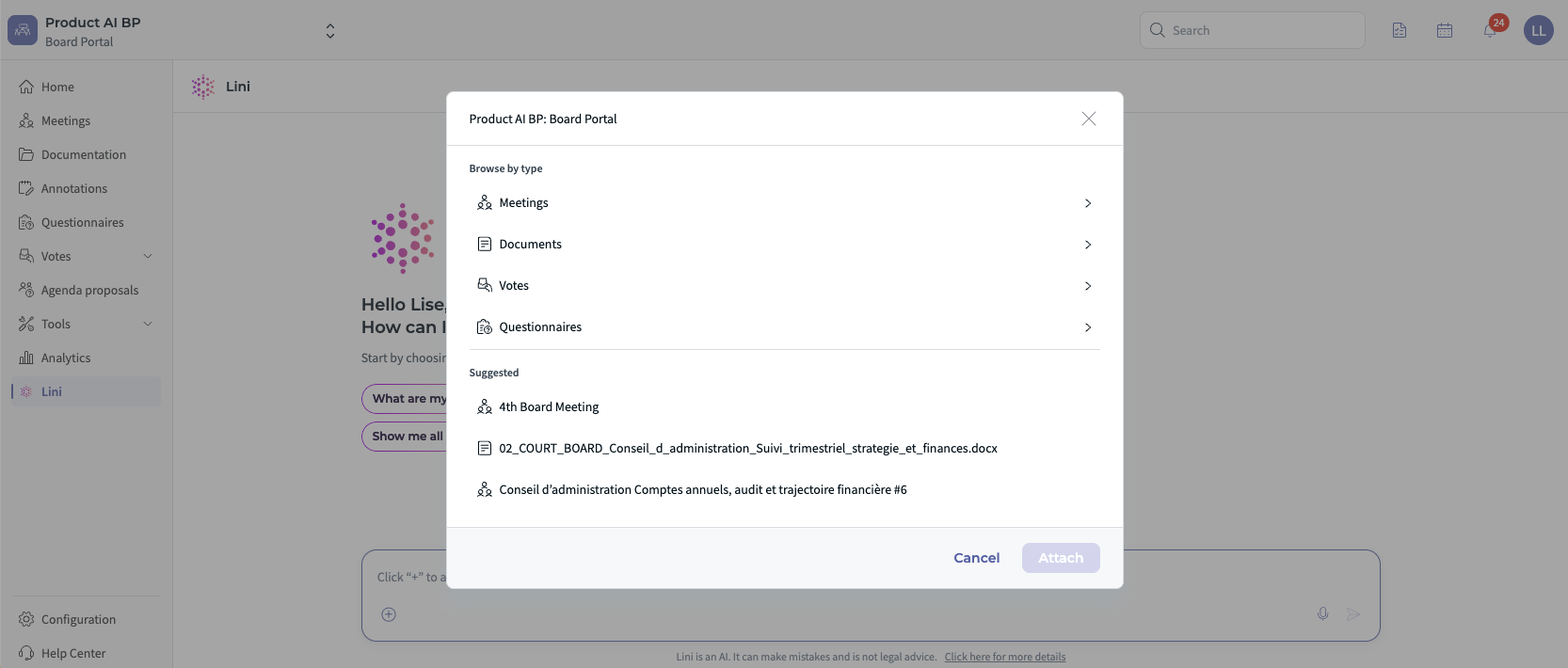
- To focus Lini on specific meetings or documents, click the + button and select them. Lini only uses the meetings and documents you have access to.
- Say what you want back: a summary, a table, a list of risks, a Word file.
- Ask follow-up questions. Lini remembers the conversation.
- To create or change something, describe the result you want. Lini prepares it for you to confirm.
⏩ Chain several tasks in one conversation
Lini can take you from a simple starting point to a finished result. You confirm each change along the way.
- Email → meeting: paste the Chair's email. Lini prepares the meeting, the agenda and the quorum, checks for agenda items without documents and drafts the invitation. You publish.
- Transcript → minutes → tasks: upload the transcript. Lini drafts the minutes with your template and sends them for review. Once they are approved, it creates the tasks and updates the Excel resolutions register.
- Vote → resolution → follow-up: when a vote closes, Lini reports the result, drafts the resolution and creates the related tasks. Before the next meeting, it flags overdue items.
⚡ Use Web Search
Web Search adds information from the internet to Lini's answers. For example: a recent regulatory update or a governance best practice.
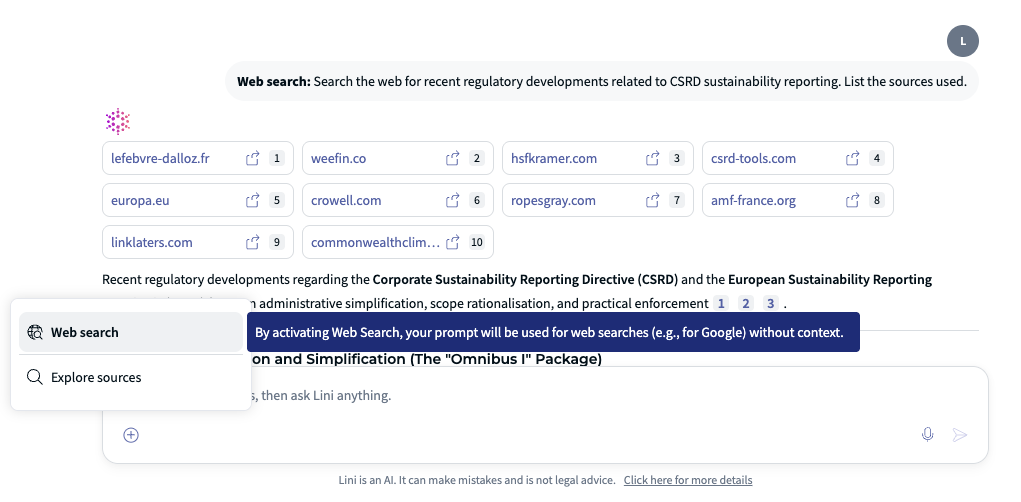
- At the bottom of the input field, click Web Search. It applies to your next question.
- Ask your question. The answer lists its web sources with numbers (1, 2, 3…).
- Click [See source] to check the original page.
- To turn it off, click the [X] in the Web Search box.
Web Search or Board Portal content: one at a time
Web Search and your Board Portal content are separate. When a meeting or document is selected, Lini answers only from that context. To combine both:
- Ask your question with the meeting or document selected.
- Remove the selected context.
- Turn on Web Search and ask your external question.
- Compare the two answers.
Example questions (Web Search on, no context selected):
- “Search the web for recent regulatory developments related to [topic]. List the sources used.”
- “Using Web Search, compare the latest public financial results of [Competitor A] and [Competitor B]. Cite the sources.”
Your organization can turn Web Search off. If you do not see it, contact your administrator.
◼ Full list of capabilities
Find and read
- Meetings: search by keyword, date, status or participant. See the agenda, participants, attendance and quorum.
- Documents and minutes: search their full text, read them, see versions and signature status. Export minutes in Word.
- Votes and questionnaires: results, participation and completion rates.
- Resolutions and tasks: search them, read them, see overdue tasks.
- Other: announcements, meeting proposals, transcripts, KPIs and five years of meeting and attendance statistics.
Analyze
- Summarize a meeting or several meetings: what was decided and who does what next.
- Compare versions of a policy, budget or resolution, and check a new resolution against previous ones.
- Calculate statistics and trends, such as attendance rates.
Create files
Lini creates Word, PDF, Excel and PowerPoint files. It saves them in the "AI Artifact" folder of your workspace and gives you the link. Files use DiliTrust colors, or your own brand colors and font if you ask.
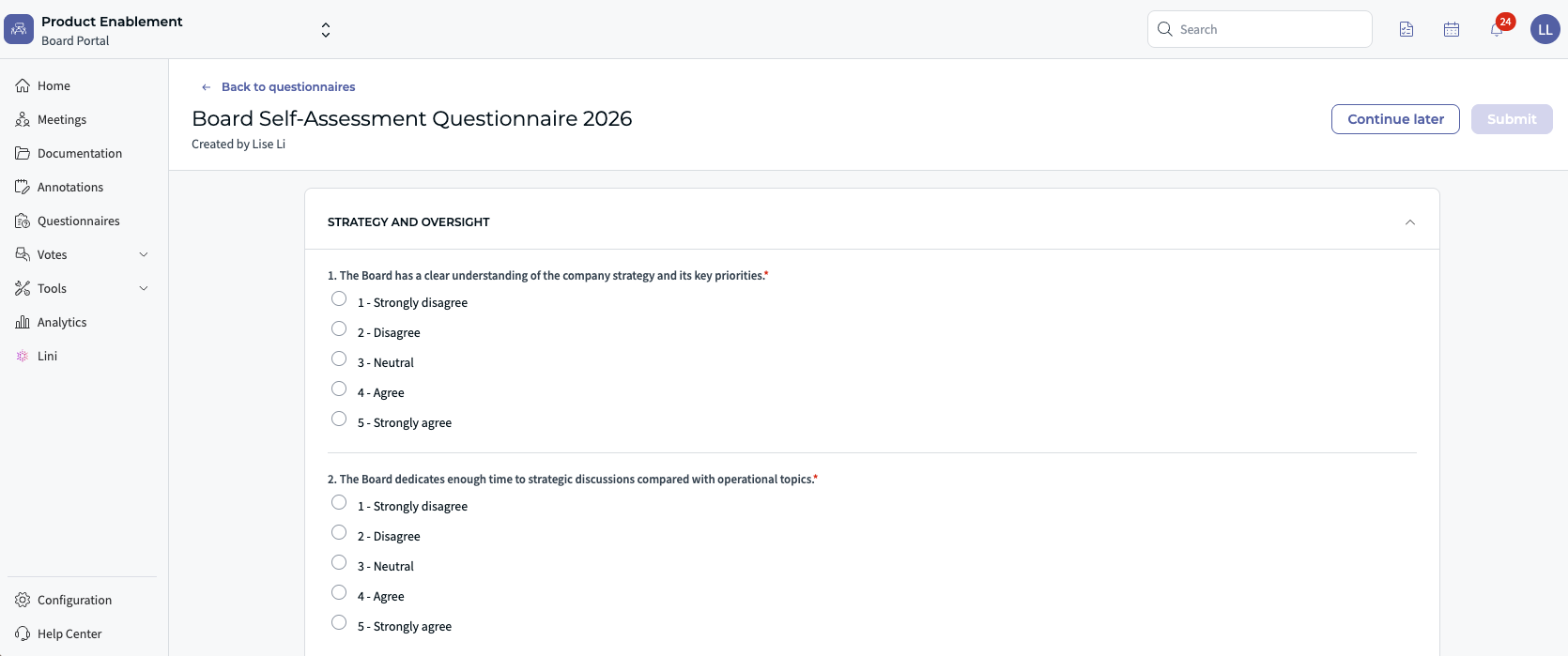
Lini can also run the Board Portal's built-in exports: minutes, vote results, questionnaire results, tasks and resolutions.
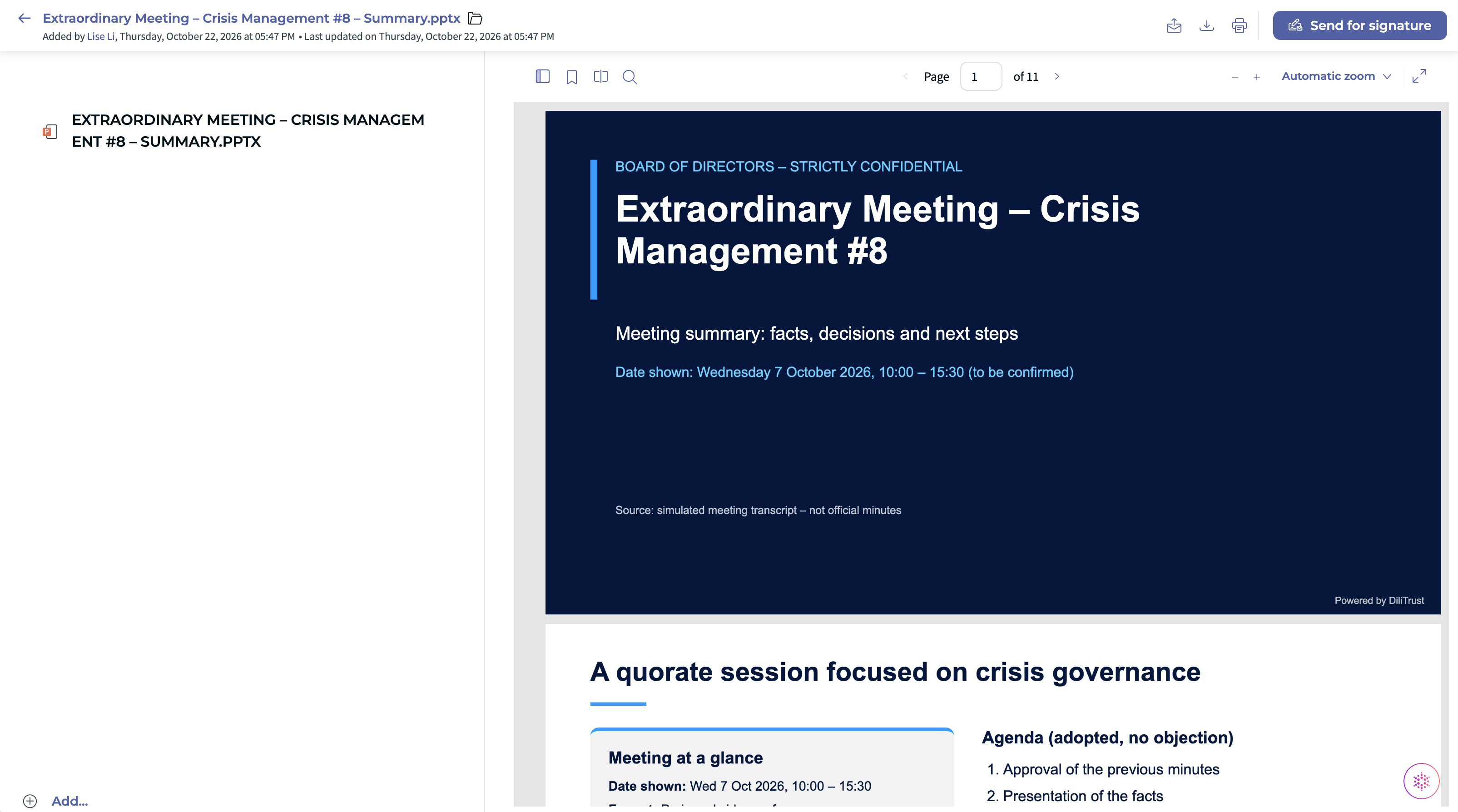
Create and change records (after you confirm)
Meetings, agendas, votes, questionnaires, tasks, minutes, resolutions, announcements, proposals and reviews, transcripts, folders and files. Lini can work from a document, an email or a message you give it.

Delete (after you confirm)
Lini prepares a deletion only when you ask for it. Deletions are permanent. Folders go to the trash.
Legal research
Lini searches published laws, case law and legal commentary in more than 230 jurisdictions.
- Lini first confirms which country or jurisdiction you mean.
- It checks every citation and makes sure the rules are still in force.
- Typical uses: quorum and majority rules, directors’ duties, conflicts of interest, approval of related-party agreements, how long minutes must be kept.
Example: “Under [jurisdiction] law, what are the rules for approving related-party agreements?”
This is legal research, not legal advice. A qualified lawyer must confirm any conclusion about your situation.
Not available yet
Signature lists per document, activity logs, security reports, individual vote answers and comments through the public interface, and user and group directory lookup. Your DiliTrust administrator can enable them.
❗ Limits
- Check the list of changes before you confirm. Deletions are permanent.
- For important decisions, open the source documents Lini cites.
- Legal research is not legal advice. Ask a qualified lawyer to confirm.
- Files created by Lini are saved in your "AI Artifact" folder. Share them according to your confidentiality rules.
- If a document has no readable text yet (for example, it is still being processed), Lini tells you and shares what it knows about the document.
- Lini works best on a computer with a stable internet connection.
❓ FAQ
Do I need to set anything up?
No. If Lini is enabled for your organization, just click the Lini icon. Full-screen mode is available to all Board Portal users.
Does full-screen mode change what Lini can do?
No. It only gives you more space. You can switch modes at any time without losing your conversation.
Is full-screen mode available in Legal Entity Management?
Not yet. Full-screen mode is only available in Board Portal for now.
Does Lini remember my previous conversations?
Yes. Your conversation history is kept, so you do not have to explain the context again.
Can Lini read scanned documents?
Yes, when full-page Lini is enabled on your Board Portal. Text recognition (OCR, the technology that reads text in scans and images) is turned on at the same time.
Who can I contact if Lini is not available for my account?
Contact your DiliTrust administrator or DiliTrust Support.
⭐ Related articles
Lini features in the Board Portal
- BP – AI Minutes in Your Own Format
- BP – AI Search in Meetings and Minutes
- BP – Audio Transcription for Board Meetings
- Suite – Lini Acts for You, With Your Approval
- Suite – Lini Creates Documents for You
- Suite – Legal Research and Analysis with Lini
Everyday Board Portal tasks that use AI
For each article, the description says where AI is used.
- Generate Meeting Minutes in the Board Portal – in the Minutes tab, the Create draft with AI option drafts the minutes from the meeting content (agenda, documents, notes, transcription).
- Set up a meeting – when creating a meeting, Lini can prepare a draft meeting from a document such as a convocation letter. You review it before publishing.
- Create and manage your questionnaires – when creating a questionnaire, administrators can import an existing document and Lini turns it into a questionnaire.
Learn more about Lini
Was this article helpful?
That’s Great!
Thank you for your feedback
Sorry! We couldn't be helpful
Thank you for your feedback
Feedback sent
We appreciate your effort and will try to fix the article